This error occurs when the jre specified in the ant run time configuration does not exist on the system. When we try to run the ant build file, it throws the following error.
Opening the details of the error shows that the ant build failed due to a coonflicted version of the jre.
In order to remove this error, you need to right click on the ant file. In the Run As you need to click on Open External Tools Dialog as shown in figure.
In the dialog box, under the Ant Build, select the ant build file you need to set the JRE for. Open the tab named JRE, probably at the extreme right of the dialog box. And select the JRE which you are using for development.
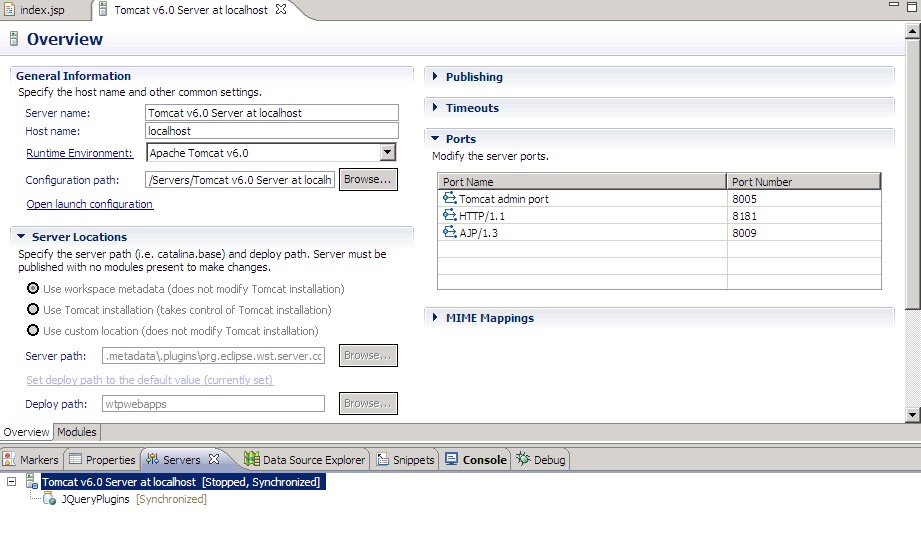
The radio buttons for changing location in server
configuration file seem disabled. I loved myEclipse over Eclipse only due to
this problem in Eclipse. The problem arises when we add or publish a project to
a server in Eclipse. The screenshot of disabled location buttons is given as
There are three solutions to this problem.
Server
created but no projects published.
Server
Created and projects published into it.
Change
location in server properties
Change
location after removing projects.
Server created but no projects published.
When a server is created and
projects are added into it, DO NOT PUBLISH
any projects into the server and you will be able to change the server location
with the radio buttons.
Server Created and projects published into
it.
When a server is created and
projects are added into it and we publish projects into the server, the
location button in server configuration file go disabled. In these cases, in
order to change the location, we must follow either of the following two
methods
Change location in server properties
Right click on the server, go to
properties, go to general, you will see a change location button as seen in the
screenshot.
Press it and you will see a changed location
left to it. You can either apply the changes directly from here or press the
Cancel button and go to the server configuration file where you will see the
enabled location radio buttons now.
Change location after removing
projects.
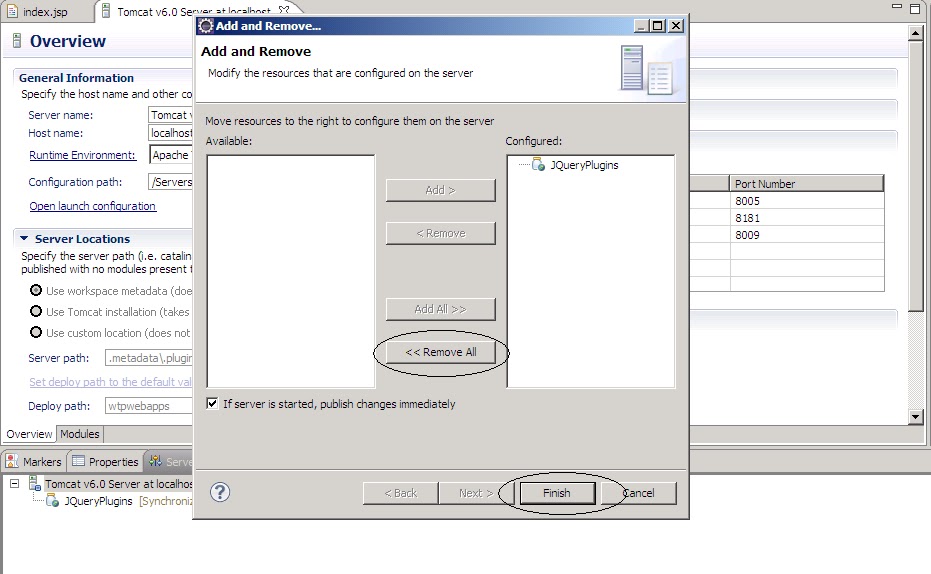
Right click on server, click on Add and
Remove…, remove all the projects. Then right click on the server and
click Clean….
Now you will be able to see the
enabled location changing buttons in the server configuration file.
java.util.TreeMap is an implementation of the
java.util.SortedMap interface. This class guarantees that the map will be in
ascending key order, sorted according to the natural order for the key's
class (see Comparable), or by the comparator provided at creation time, depending on which constructor is used.
Following is a simple example of inserting employees into a
map based on their countries. The example consists of 2 classes.
Employee.java
package
com.soft.model;
publicclass Employee{
private
String name;
private
String department;
privateint age;
public
String getName() {
return name;
}
publicvoid setName(String name) {
this.name = name;
}
public
String getDepartment() {
return department;
}
publicvoid setDepartment(String department) {
this.department = department;
}
publicint getAge() {
return age;
}
publicvoid setAge(int age) {
this.age = age;
}
}
TreeMapExample.java
package
com.soft.examples;
import
java.util.Collections;
import
java.util.Set;
import
java.util.SortedMap;
import
java.util.TreeMap;
import
com.soft.model.Employee;
publicclass TreeMapExample {
publicstaticvoid
main(String[] args) {
SortedMap<String,
Employee> map = new TreeMap<String, Employee>();
SortedMap<String,
Employee> descendingMap = new TreeMap<String, Employee>(Collections.reverseOrder());
Employee
e = new Employee();
e.setName("Danial
Fritz");
e.setDepartment("Field
Based Development");
e.setAge(36);
map.put("Canada",
e);
descendingMap.put("Canada",
e);
e = new
Employee();
e.setName("Denis
Khoo");
e.setDepartment("Project
Management");
e.setAge(30);
map.put("England",
e);
descendingMap.put("England",
e);
e = new
Employee();
e.setName("Joe
Kum");
e.setDepartment("Adminstration");
e.setAge(40);
map.put("Pakistan",
e);
descendingMap.put("Pakistan",
e);
e = new
Employee();
e.setName("Anil
Kumar");
e.setDepartment("Information
Technology");
e.setAge(26);
map.put("China",
e);
descendingMap.put("China",
e);
e = new
Employee();
e.setName("Anil
Kumar");
e.setDepartment("Information
Technology");
e.setAge(26);
map.put("Brazil", e);
descendingMap.put("Brazil", e);
e = new
Employee();
e.setName("Anil
Kumar");
e.setDepartment("Information
Technology");
e.setAge(25);
map.put("Kowait", e);
descendingMap.put("Kowait", e);
e = new
Employee();
e.setName("Anil
Kumar");
e.setDepartment("Project
Management");
e.setAge(26);
map.put("Jordan", e);
descendingMap.put("Jordan", e);
System.out.println("************
Sorting By Natural Order of keys ***********");
Java.Util.Comparable is an interface used for sorting
collections. In previous example, we used a MultyField Comparable to sort a
list in ascending order by multiple fields. In this example, we will implement
a reverse order multy field Comparable in order to achieve a sorting in
descending order or in other words in reverse order of whatever is implemented
in the Comparable. This can be achieved just by a single line of code as
Comparator c= Collections.reverseOrder();// yes a
comparator is used to achieve it.
This example is almost a replica of the previous example. It
consists of the following 2 classes.
Java.Util.Comparator is an interface used for sorting
collections. In previous example, we used a MultyField Comparator to sort a
list in ascending order by multiple fields. In this example, we will implement
a reverse order multy field Comparator in order to achieve a sorting in
descending order or in other words in reverse order of whatever is implemented
in the Comparator. This can be achieved just by a single line of code as
Java.Util.Comparable is an interface used for sorting
collections. In previous example, we used Comparable for sorting by only one
field. In this example, we will see a more complex Comparable which can be used
to sort a list of employees based on the name, then on department and then on
age. The example consists of the following 2 classes.
Java.Util.Comparator is an interface used for sorting
collections. In previous example, we used comparator for sorting by only one
field. In this example, we will see a more complex comparator which can be used
to sort a list of employees based on the name, then on department and then on
age. The example consists of the following 3 classes.