Sunday, March 30, 2014

DBQL related Queries in Teradata

Enabling/Disabling Query Logging for an Account String:

Getting Account String for a User:

Account string of a user can be verified by querying "dbc.accountinfo" view or better edit profile to check account string.

select * from dbc.accountinfo where username =’username’


Enabling DBQL for an Account String:

The DBQL can be enabled for a specific user using their account string by below command:

begin query logging with explain,objects, sql on all account=(' $M$BUSI$S$D$H')

In the above command query logging will be enabled for objects, sql text and explain on all user having account ‘$M$BUSI$S$D$H' . There are few more detailed options for query logging available namely 

  • step logging, 
  • xml explain, 
  • summery logging.

The text size of sql text can be limited by limit clause as below. Here 0 means unlimited whereas any positive integer will limits to its value.

begin query logging with explain,sql limit sqltext=0 on all account=(' $M$BUSI$S$D$H')


Disabling DBQL for an Account String:

Query logging can be disabled with end query logging command as shown below.

end query logging with explain,objects, sql on all account=(' $M$BUSI$S$D$H')


Enabling/Disabling Query Logging for an Account String:

DBQL can be enabled/disabled for all users irrespective of their account string by below commands:

Begin query logging with objects, sql limit sqltext=0 on all;

End query logging with objects, sql limit sqltext=0 on all


Verifying DBQL Rules:

DBQL rules can be verified by querying "dbc.dbqlrules" view.

select * from dbc.dbqlrules


Deleting DBQL Logs:

Finally, these 2 queries are used for deleting DBQL Logs in order to create free space in the database.

Del  dbc.dbqlogtbl 
Del  dbc.DBQLSqlTbl  


Space Related Queries in Teradata

Calculate DiskSpace of a Database in GBs:

SELECT DATABASENAME, 
SUM(MAXPERM)/1024/1024/1024 Max_available_Space_GBs,
SUM(CURRENTPERM)/1024/1024/1024 Consumed_Space_GBs,
(SUM(CURRENTPERM))/(SUM(MAXPERM))*100 Percent_Utilised
FROM DBC.DISKSPACE
WHERE DATABASENAME IN('DB_NAME') 
GROUP  BY 1;

Calculate DiskSpace of a Database in MBs:

SELECT DatabaseName ,SUM(CurrentPerm)/1024/1024 AS USEDSPACE_IN_MB ,
SUM(MaxPerm)/1024/1024 AS MAXSPACE_IN_MB ,
SUM(CurrentPerm)/ NULLIFZERO (SUM(MaxPerm)) *100 (FORMAT 'zz9.99%') AS Percentage_Used  ,
MAXSPACE_IN_MB- USEDSPACE_IN_MB AS REMAININGSPACE_IN_MB 
FROM DBC.DiskSpace 
WHERE DatabaseName = 'DB_NAME'  
GROUP BY DatabaseName;


Calculate TableSize per Database per Table in MBs:

Sel databasename, tablename, sum(peakperm)/1024/1024 as peakperm, sum(currentperm)/1024/1024 as currentperm 
from dbc.tablesize
where databasename ='dbc'
group by 1,2


Calculate Tablesize per Database per Table per VPROC in MBs:

Sel databasename, tablename, vproc, sum(peakperm)/1024/1024 as peakperm, sum(currentperm)/1024/1024 as currentperm 
from dbc.tablesize
group by 1,2,3


Random Number Generation in Teradata

The syntax for random number generation is as following in Teradata:

SELECT Random("min value", "max value"); 
e.g.: SELECT Random(0, 10);

The "min value", "max value" are inclusive in the range.

If you want to update a column, try the following SQL.


update DB.TABLE_NAME set age=random(18,75);


There might be cases where Random function can produce duplicate values. SO while designing tables , make sure that the column making use of RANDOM is not part of UNIQUE PRIMARY INDEX


Selecting Datatypes of columns from DBC.Columns


Selecting DataTypes of Columns from DBC.COLUMNS

Select the data types of the columns in a tables in TERADATA, here is an SQL for that:

SELECT DatabaseName, TableName, ColumnName
,
(CASE
WHEN columntype='CV' THEN 'VARCHAR'
WHEN columntype='DA' THEN 'DATE'
WHEN columntype='I' THEN 'INTEGER'
WHEN columntype='CF' THEN 'CHAR'
WHEN columntype='F' THEN 'FLOAT'
WHEN columntype='I1' THEN 'BYTEINT'
WHEN columntype='I2' THEN 'SMALLINT'
WHEN columntype='I8' THEN 'BIGINT'
WHEN columntype='BO' THEN 'BLOB'
WHEN columntype='CO' THEN 'CLOB'
WHEN columntype='TS' THEN 'TIMESTAMP'
WHEN columntype='BF' THEN 'BYTE'
WHEN columntype='SZ' THEN 'TIMESTAMP W/ZONE'
WHEN columntype='BV' THEN 'VARBYTE'
WHEN columntype='DM' THEN 'INVERVAL DAY TO MINUTE'
WHEN columntype='D' THEN 'DECIMAL'
ELSE columntype END)||'('||trim(ColumnLength)||')' 
AS DataType
FROM DBC.COLUMNS
WHERE 
DatabaseName='DATABASE_NAME'
and 
TableName = 'TABLE_NAME'
order by 1,2,3


And the result looks like:


Random Number Generation In Teradata


Thursday, December 13, 2012

JQuery Editable Data Grid

A friend of mine asked me to create an editable data grid for him for his web application. In less than 5 minutes I made him one and he was very surprised to see it. He did know about the power of JQuery. It takes only 2 lines of code to convert a table into an editable data grid. The datagrid looks like below:


And the html code is:

<html>
    <head>
        <title>Editable Grid Demo</title>
        <script src="http://ajax.googleapis.com/ajax/libs/jquery/1.8.0/jquery.min.js"></script>
        <script>
            $(document).ready(function(){
                $(".editableSpan").click(function(){
                    $(this).hide().next().show().focus();
                });
                $(".editableField").blur(function(){
                    $(this).hide().prev().show().html($(this).val());
                });
            });
        </script>
        <style>
            .editableField{
                display:none;
            }


            table.cbl
            {
            border-collapse:collapse;
            }
            table.cbl,table.cbl td,table.cbl th
            {
            border:1px solid black;
            }
            table.cbl tr.odd{
                background-color:#c1c1c1;
            }
        </style>
    </head>
    <body>
        <table class="cbl">
            <thead>
                <th width="150px">
                    Name
                </th>
                <th  width="150px">
                    Email
                </th>
                <th width="150px">
                    Manager
                </th>
            </thead>
            <tbody>
                <tr class="odd" height="16px">
                    <td><span class="editableSpan">Name1</span> <input type="text" name="name1" id="name1" class="editableField" value="Name1"/></td>
                    <td><span class="editableSpan">email1@abc.com</span> <input type="text" name="email1" id="email1" class="editableField" value="email1@abc.com"/></td>
                    <td>
                       
                        <select  name="manager1" id="manager1">
                           
                            <option value="John">John</option>
                           
                            <option value="Richard" selected="selected">Richard</option>
                            <option value="Mark">Mark</option>
                        </select>
                   
                    </td>
                </tr>
                <tr>
                    <td><span class="editableSpan">Name2</span> <input type="text" name="name2" id="name2" class="editableField" value="Name2"/></td>
                    <td><span class="editableSpan">email2@abc.com</span> <input type="text" name="email2" id="email2" class="editableField" value="email2@abc.com"/></td>
                    <td>
                        <select  name="manager2" id="manager2">
                           
                            <option value="John" selected="selected">John</option>
                           
                            <option value="Richard">Richard</option>
                            <option value="Mark">Mark</option>
                        </select>
                    </td>
                </tr>
                <tr class="odd">
                    <td><span class="editableSpan">Name3</span> <input type="text" name="name3" id="name3" class="editableField" value="Name3"/></td>
                    <td><span class="editableSpan">email3@abc.com</span> <input type="text" name="email3" id="email3" class="editableField" value="email3@abc.com"/></td>
                    <td>
                   
                        <select  name="manager3" id="manager3">
                           
                            <option value="John" selected="selected">John</option>
                           
                            <option value="Richard">Richard</option>
                            <option value="Mark">Mark</option>
                        </select>
                    </td>
                </tr>
                <tr>
                    <td><span class="editableSpan">Name4</span> <input type="text" name="name4" id="name4" class="editableField" value="Name4"/></td>
                    <td><span class="editableSpan">email4@abc.com</span> <input type="text" name="email4" id="email4" class="editableField" value="email4@abc.com"/></td>
                    <td>
                   
                        <select  name="manager4" id="manager4">
                           
                            <option value="John">John</option>
                           
                            <option value="Richard" selected="selected">Richard</option>
                            <option value="Mark">Mark</option>
                        </select>
                    </td>
                </tr>
                <tr class="odd">
                    <td><span class="editableSpan">Name5</span> <input type="text" name="name5" id="name5" class="editableField" value="Name5"/></td>
                    <td><span class="editableSpan">email5@abc.com</span> <input type="text" name="email5" id="email5" class="editableField" value="email5@abc.com"/></td>
                    <td>
                       
                        <select  name="manager1" id="manager1">
                           
                            <option value="John">John</option>
                           
                            <option value="Richard">Richard</option>
                            <option value="Mark" selected="selected">Mark</option>
                        </select>
                    </td>
                </tr>
            </tbody>
        </table>
    </body>
</html>    

Saturday, August 4, 2012

Using Tortoise SVN

Ok, first thing first, forget about the terminologies used in VSS. Those terminologies are never used in SVN except for SVN Check out which is a bit different from the VSS CheckOut. We will explain this in detail later.

Installing an SVN Client:

Please install the tortoise SVN client from
http://download.cnet.com/TortoiseSVN-64-bit/3000-2383_4-75211577.html (64 bit)
http://download.cnet.com/TortoiseSVN-32-bit/3000-2383_4-10800080.html (32 bit)

OR directly from the Tortoise SVN Site.
http://tortoisesvn.net/downloads.html


Once the installation is complete, right click anywhere and you will have a right click option window like below.


You can see the options like “SVN Checkout” and “TortoiseSVN -->”. Hold your horses, we will explain these in detail later.
If you do not find these options in the right click, then the installer package is probably not supported by your OS. You need to either install an older version or a newer version based on the type of OS and Service Pack you have.


SVN Checkout, Downloading the Source Code for the first time:

Yes, we use SVN Checkout only once for downloading the source code for the first time.
 After we have downloaded the source code for the first time, we then use SVN Update and SVN Commit (Patience: will be explained later) for updating/committing your local code from/to the code repository.

How the SVN Checkout works? Well we need a project directory, lets say, Project_SVN on Desktop. We will navigate to Project_SVN directory. Inside that we will right click and then we will click on the SVN Checkout and a window like the following will appear.


Enter the repository url given to you by SVN adminstrator in the URL of repository as shown above. Click OK and it will ask for the authentication as below


Enter your username and password. If you want, you can “Save authentication” so that you may not enter the authentication each time you access the repository.
Once the authentication process is complete, it will start downloading the code. When the download finishes, it will enable the OK button at the bottom.


After the checkout finishes, you will see a folder structure like below


The green signs on folders and files mean that your local code has no changes since the last update.

Now, right click in the Project_SVN folder and you will see additional SVN commands as below.


SVN Update:

When someone else does some changes in a file and commits it to the code repository, you will never know of it. That’s a pitfall to SVN (really? I don’t think so). SVN works in an offline mode and that’s why it perfectly suits faster development. So if I don’t know which file is worked by whom, and I really don’t care in an offline mode as SVN works in an offline mode, then how will I know that I need to get the latest code. Well for that we will follow the following 2 golden rules.
1.    You SHOULD always update your code at the beginning of the day.
2.    You MUST always update your code before committing your changes because it is possible that the file you have worked on may have been changed by someone else in your team at the repository. So when you update, his/her code will be merged to your changed file. And after that you will commit your changes, fair enough, isn’t it?

So how do we do an SVN Update? Just right click in a folder you want to update and click the SVN Update. It will ask for authentication if you haven’t saved it already.

SVN Commit:

Remember; always do an SVN Update before an SVN Commit.

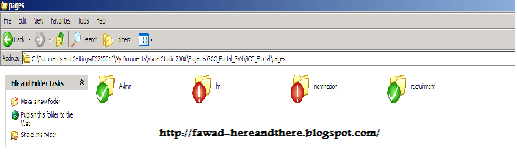
So how do we know that we need to commit? Simple, if you have red files in your LOCAL repository, you need to do an SVN Commit and if your functionality, you are working on, is complete.


In this figure, we can see that some changes have been made to hr and nomination folder.

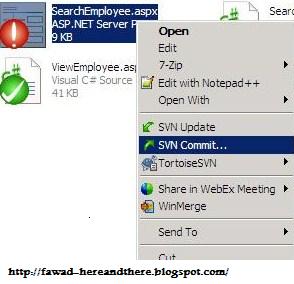
How do we do SVN Commit? There are 2 ways of doing it.

1.    We need to reach out for each red file in the hierarchy and right click on it and then click the svn commit.
    

2.    Right Click at the root of the local directory and click on SVN Commit. A window will appear containinig a list of all locally changed files. You can select/deselect from that list of files and click OK at the bottom.
    

The above figure shows that 2 files have been changed at the local code repository. You can add a comment for the commit as well.

SVN DIFF:

What if we want to know what changes have we made locally. Local changes mean that the file will be in red. So navigate to that file. Right Click on it, hover on “TortoiseSVN -->” and click on Diff.


After clicking Diff, a window like below will open.


The left side shows code at the repository. The right side shows code on your local. The Orange and yellow line indicates that this line contain changes, in this case an extra space has been added.

SVN Show log:

This is used to check the log history as who committed what and when. This can be triggered through the following figure.


And the log history is shown like below.


One portion of the window shows the names of the people who committed the code. When we click on a name, we see which files he/she committed in the bottom section. If we click on a file in the bottom section, it will open an SVN Diff window showing a comparison between the code committed in that version and a previous version. We can also see revision Numbers in the log history. These versions will be used in SVN Update to revision.

SVN Update to revision:

If we want to revert a file to a previous version in time, we can do that by SVN Update to revision. We can do it as shown in the following figure.


Clicking it will appear another window as shown
      

Type in the revision number and click Ok.

Adding Files To Repository:

If we want to place new files to the SVN repository, we can do it by SVN Add. If we add a non-versioned file to the SVN local folder, it will look like below.
     

The question mark shows that this file is not versioned yet. Right click on the image and follow the figure below.


Click on the Add… option and the file will be versioned. Now you need to right click on the image and commit it.

Resolving Conflicts:

By now, you know that while working with SVN, UNLIKE VSS, you do not know if a file you are working on has been changed by someone else on the repository. SVN takes the burden of merging such changes. But SVN fails at one point when the changes being made are at the same line, by same line I mean same line number. In this case when you do an update, svn shows that some files are in conflict. SVN generates 4 copies of the same file in this case. Lets assume that the other guy’s name is Mr. X who made changes to the same file on the same lines I worked on
1.    Merged File. Contains changes from both me and Mr. X.
2.    My file. Contains my changes. It does not have changes from Mr. X.
3.    Current Version file. This is the file which Mr. X committed to repository. It does not contain my changes
4.    Previous Version. It neither contains changes from me nor from Mr. X.

If we ever came across any conflicts, we will use these files to resolve the issue.


Thats all from me.Hope this article will help someone out there.

Thursday, May 3, 2012

Difference between JDK and JRE

JDK:
         JDk means Java Development Kit. Its a bundle of soft-wares and tools that we use to develop java based softwares. JDK is needed by Java developers to develop programs and applications. the tools provided by JDK include compiler (javac.exe), Java application launcher (java.exe), Appletviewer, Debugger etc… Compiler converts java code into byte code. Java application launcher opens a JRE, loads the class, and invokes its main method.

JRE:
        JRE means Java Run-time Edition or Java Run-time Environment. JRE is required to run any Java based software or applications. JRE = JVM + Java Packages Classes(like util, math, lang, awt,swing etc)+runtime libraries.


The following snippet has been taken from the README.html in jdk1.6.0_03.

Contents of the JDKTM

This section contains a general summary of the files and directories in the JDKTM. For details on the files and directories, see the JDK File Structure section of the Java SE documentation for your platform.
Development Tools
(In the bin/ subdirectory) Tools and utilities that will help you develop, execute, debug, and document programs written in the JavaTM programming language. For further information, see the tool documentation.
Runtime Environment
(In the jre/ subdirectory) An implementation of the Java Runtime Environment (JRETM) for use by the JDK. The JRE includes a JavaTM Virtual Machine (JVMTM), class libraries, and other files that support the execution of programs written in the JavaTM programming language.
Additional Libraries
(In the lib/ subdirectory) Additional class libraries and support files required by the development tools.
Demo Applets and Applications
(In the demo/ subdirectory) Examples, with source code, of programming for the JavaTMTM Foundation Classes, and the JavaTM Platform Debugger Architecture. platform. These include examples that use Swing and other Java
Sample Code
(In the sample subdirectory) Samples, with source code, of programming for certain Java API's.
C header Files
(In the include/ subdirectory) Header files that support native-code programming using the Java Native Interface, the JVMTM Tool Interface, and other functionality of the JavaTM platform.
Source Code
(In src.zip) JavaTM programming language source files for all classes that make up the Java core API (that is, sources files for the java.*, javax.* and some org.* packages, but not for com.sun.* packages). This source code is provided for informational purposes only, to help developers learn and use the JavaTM programming language. These files do not include platform-specific implementation code and cannot be used to rebuild the class libraries. To extract these file, use any common zip utility. Or, you may use the Jar utility in the JDK's bin/ directory:
jar xvf src.zip

The Java Runtime Environment (JRETM)

The JavaTM Runtime Environment (JRETM) is available as a separately downloadable product. See the download web site.
The JRE allows you to run applications written in the JavaTM programming language. Like the JDKTM, it contains the JavaTM Virtual Machine (JVMTM), classes comprising the JavaTM platform API, and supporting files. Unlike the JDK, it does not contain development tools such as compilers and debuggers.
You can freely redistribute the JRE with your application, according to the terms of the JRE license. Once you have developed your application using the JDK, you can ship it with the JRE so your end-users will have a JavaTM platform on which to run your software.

The following video may also help.